
Before you start using sign2.me, make sure everything is properly set up in your Salesforce org.
1. User Permissions
After installation, you need to assign the correct Permission Sets to each user type.
For Admins
- Assign the Permission Set sign2.me – Admin User Permission Set.
This grants full admin access to all sign2.me features and settings.
For Standard Users
- Assign the Permission Set sign2.me – User Permission Set.
This provides access to the main functionality of the app.
For Notifications
- To enable Salesforce notifications (for example, when an envelope is sent, signed, etc.), also assign the Permission Set sign2.me – Apply User Notification.
2. Guided Setup Flow
To make the configuration easier, sign2.me includes a Guided Setup Flow that helps you complete all initial steps.
- Click the App Launcher (9 dots) in the upper-left corner of Salesforce.
- Open the app sign2.me for Admins.
- In the top-right corner, click the Setup Flow button to start the guided configuration.
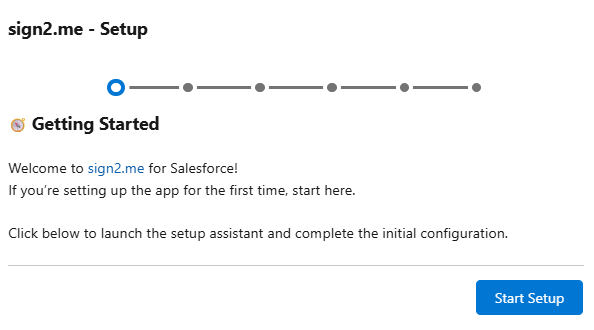
The flow will walk you through the following steps:
- Create a Company Settings record:
Define your organization’s main configuration record, including default language, operator role, sender email, redirect URLs, expiration settings, and domain information used by sign2.me.
This record controls the global behavior of the signature platform and ensures consistency across all transactions. - Site creation:
Create or configure your Salesforce Site to allow external users to sign documents through public links.- permission set For Guest Users
- Assign the Permission Set
sign2.me - Guest User Permission Setto your site’s Guest User. - This is required for external users to sign documents through public links.
- Assign the Permission Set
- permission set For Guest Users
- Domain creation:
Register and activate your Salesforce Domain to host your site securely and ensure public access to the signing pages. - Complete Company Settings details:
After the domain and site are created, return to your Company Settings record to finalize the remaining email and redirect configurations. - Overview and finalization:
Review all configured steps, confirm your settings, and finish the guided setup process.
🛈 Tip: Follow the flow to the end to ensure all settings are created correctly before testing your first envelope.
Note: The Enterprise Settings record can be edited at any time after configuration.
You can also create additional Enterprise Settings records if your organization requires different settings for its use cases.
All Set!
Once these steps are completed, sign2.me is ready to use in production.