
The signature history component is a visual tool that can be added to any platform object (such as Account, Opportunity, or Case). It allows users to view, in a centralized manner, the complete history of an envelope—from creation and sending to the progress of signatures and completion. This component makes it easy to track each step of the process, improving envelope management and monitoring.
How to add the component to a page
- Open the Lightning App Builder
- Access the record of the desired object:
Ex.: Account, Opportunity, or Case.
Click the gear icon (⚙️) in the upper-right corner of the screen.
Select “Edit Page”.
This opens the Lightning App Builder for the selected object and page type.
OR - Accessing the Lightning App Builder via Setup:
Click the gear icon (⚙️) in the upper-right corner of the screen.
Select “Setup”.
In the Quick Find search box at the top of the left-hand sidebar, type “App Builder”.
Click Lightning App Builder in the search results. In the list of pages, you will see all existing Lightning pages in your organization.
To find the page for the object you want to edit, you can filter by Page Type (Record Page, Home Page, App Page).
Click the name of the page you want to edit, or click Edit to open the Lightning App Builder.
- Access the record of the desired object:
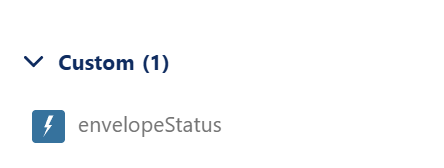
- In the left panel, search for the envelopeStatus component.
Use the search bar or scroll through the components list to locate it. - Drag the component to the desired position on the page.
You can place it in areas such as:
- Sidebar
- New tab
- Main page section
- Sidebar
- Click “Save” in the upper-right corner.
- (If necessary) Click “Activate”.
If this is a new version of the page, you will need to activate it for users.
Click “Back”.
The envelopeStatus component will now be visible and functional on the record page.